


The fastest way to bulk add UTM parameters to Google Ads is the account-level final URL suffix: paste one line into Admin > Account settings > Tracking, and every campaign, ad group, and ad in the account is tagged at once. This line covers most accounts:
```
utm_source=google&utm_medium=cpc&utm_campaign={campaignid}&utm_term={keyword}&utm_content={creative}
```
The curly-brace ValueTrack parameters fill themselves in per click, so you never retype a campaign name again. Ten minutes, no spreadsheet, and, unlike the ad-by-ad method most tutorials teach, no ads sent back for review.
That last part deserves its own section, because it is the difference between a safe rollout and pausing your live ads without meaning to.
Why the account-level suffix beats editing ads
URL changes at the account, campaign, or ad group level apply without resubmitting ads for review. Editing URLs at the ad level sends every touched ad back through policy review.
This comes straight from Google's documentation: tracking set up at ad group level or higher updates without re-approval, while changes at the ad, keyword, or sitelink level go back through review. Most bulk-UTM tutorials walk you through selecting hundreds of ads in Google Ads Editor and appending text to their URLs. That works, but every one of those ads re-enters review, which means your live ads can stop serving while Google re-checks them. On an account spending real money, that is a self-inflicted outage.
The account-level suffix sidesteps the whole problem. One field, applied everywhere, live ads untouched. It also survives new campaigns automatically: anything you launch next month inherits the tagging on day one, which is the part manual methods always eventually miss.
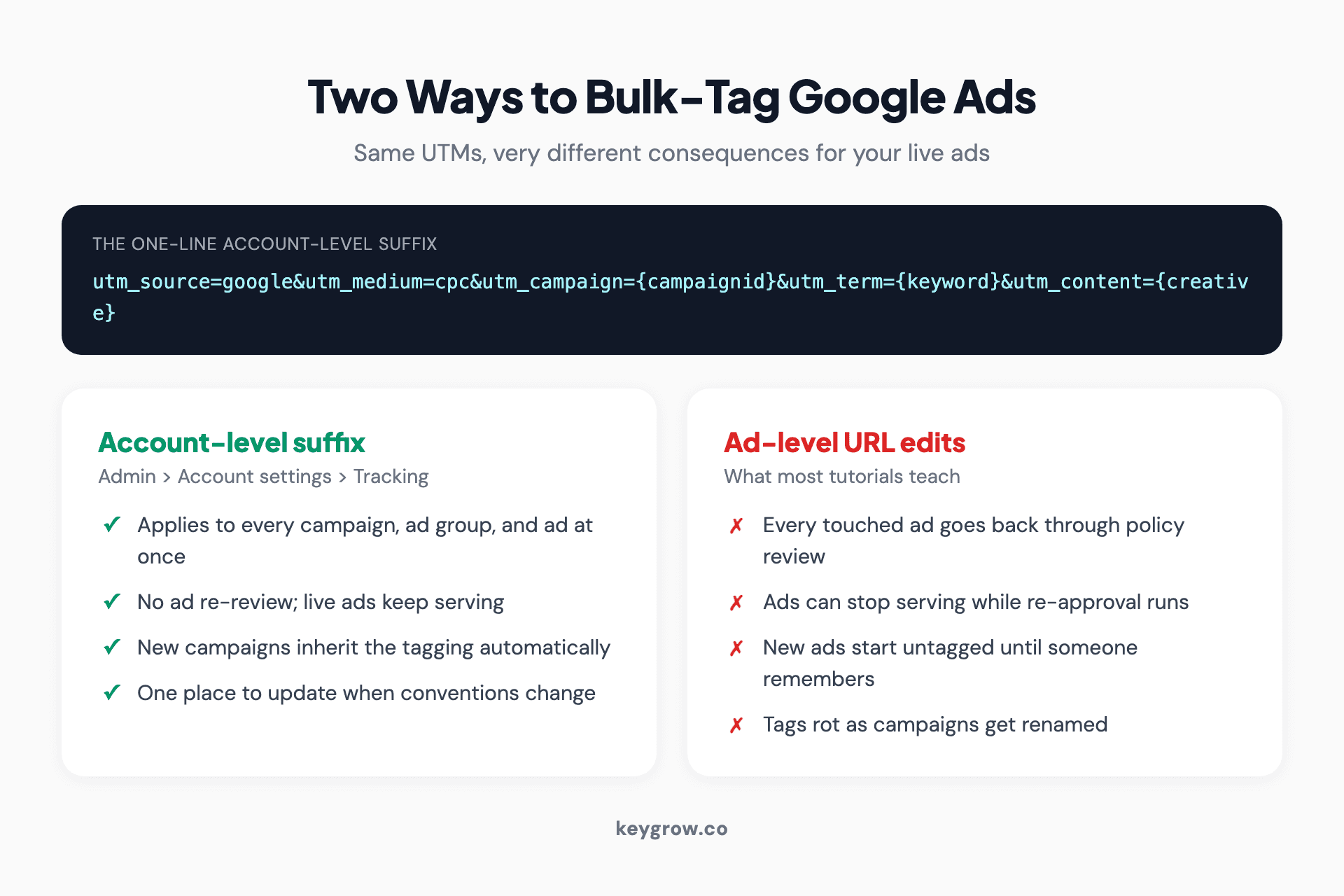
Comparison cards showing the two bulk UTM methods: the account-level suffix applies instantly with no ad review, while ad-level URL edits send every ad back through policy review.
Suffix or tracking template?
Use the final URL suffix for UTM parameters. Use a tracking template only when a third-party tracker needs to sit between the click and your site.
Both fields live in the same Tracking section, and mixing them up is the most common setup mistake. The split:
- Final URL suffix appends parameters to your landing page URL. UTMs belong here. With parallel tracking, visitors go straight to your page with the parameters attached.
- Tracking template rewrites the whole click path and must include {lpurl} or the landing page URL breaks, per Google's template documentation. It exists for click-measurement services, not for UTMs.
One hierarchy rule worth knowing before you set anything at campaign level: more specific settings replace less specific ones completely. A campaign-level suffix does not add to the account-level suffix, it overrides it, so a campaign-level suffix must repeat utm_source and utm_medium along with whatever you meant to change.
The ValueTrack parameters worth putting in your suffix
ValueTrack parameters are placeholders Google fills in at click time. Five of them cover almost every reporting question you will actually ask.
| Parameter | What it returns | Why you want it |
|---|---|---|
| {campaignid} | The campaign's numeric ID | Which campaign drove the visit |
| {adgroupid} | The ad group's numeric ID | Structure-level performance in analytics |
| {keyword} | The matched keyword | Which keyword earned the click |
| {creative} | A unique ID for the ad | Which ad variant converted |
| {device} | m, t, or c | Mobile, tablet, or computer |
Two honest caveats. IDs are not names: {campaignid} returns a number like 21847629301, so your analytics reports need a lookup step (or a naming convention documented somewhere) to stay readable. There is no ValueTrack that returns the campaign's text name. And {keyword} is empty on keywordless formats like Performance Max, so do not be alarmed by blank utm_term values from those campaigns. The full parameter list lives in Google's ValueTrack reference.
If you want to build and preview a tagged URL by hand first, our free UTM builder does the assembly and encoding for you.
Do you even need UTMs when auto-tagging is on?
Yes, but for less than you think. In GA4, auto-tagging wins source and medium classification no matter what your UTMs say; manual utm_term and utm_content survive in their own dimensions.
This is the question the ranking tutorials get wrong, some of them by citing a Universal Analytics override setting that no longer exists. The current behavior, per GA4's documentation, is:
- Auto-tagging (the GCLID parameter) gives GA4 dimensions manual tags cannot: ad network type, keyword text, search query, account and ad group detail. Leave it on. Google Ads features like conversion imports depend on it, and those only work if your conversion ID is set up correctly in the first place.
- When both are present, GA4 classifies traffic using the auto-tagged values. Your utm_source=google&utm_medium=cpc does not override anything; it is a fallback for when the GCLID is missing.
- Manually tagged utm_term and utm_content appear in the separate "Manual term" and "Manual ad content" dimensions.
So the practical answer: keep auto-tagging on, and use the suffix so your clicks stay attributable in three situations auto-tagging does not cover: non-Google analytics and BI tools that cannot read a GCLID, CRM lead records that capture URL parameters, and clicks where redirects or consent tools strip the GCLID. The suffix is the insurance layer, not the primary attribution.
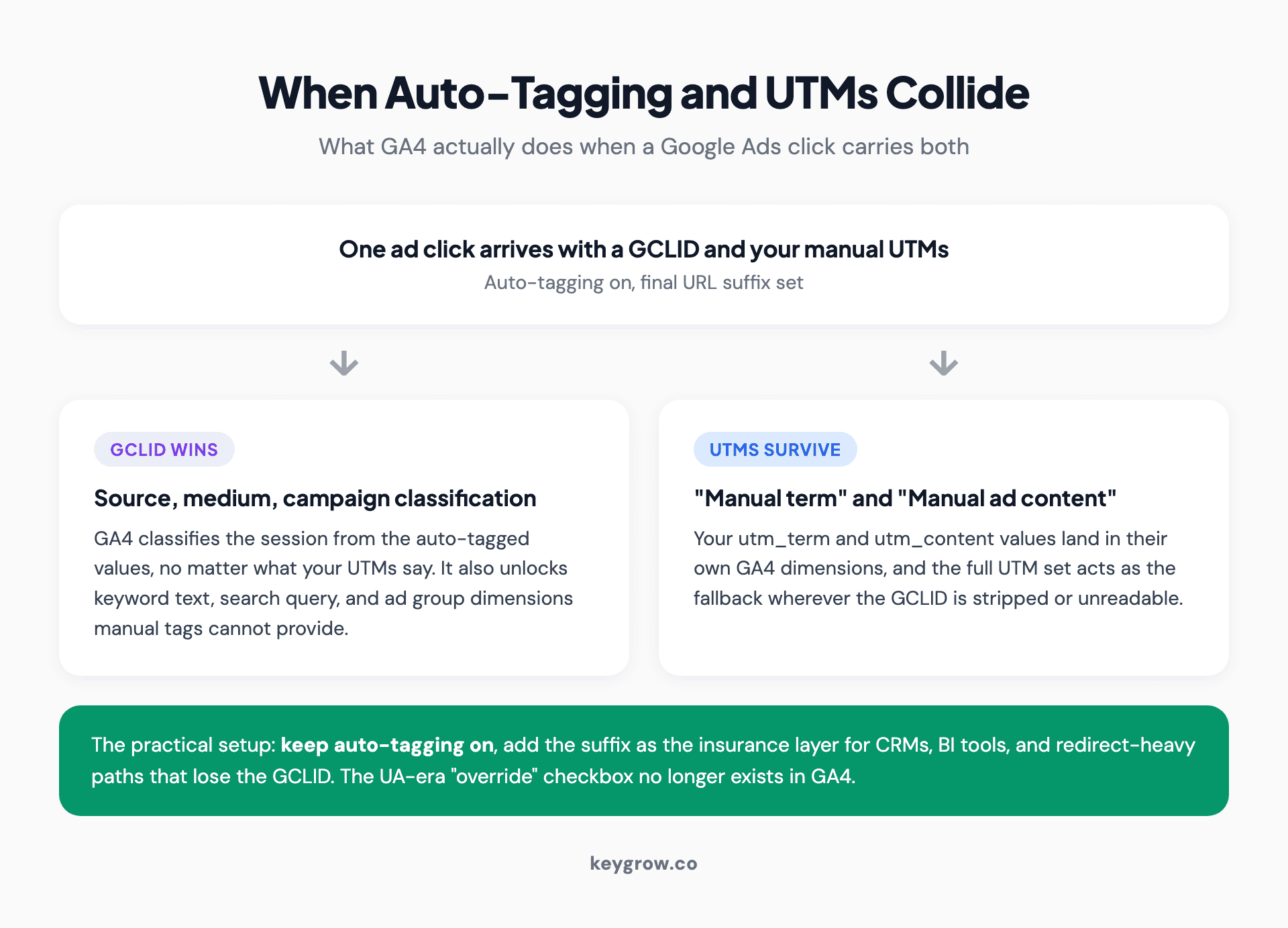
Flow diagram of what GA4 does when auto-tagging and manual UTMs are both present: the GCLID wins source and medium, manual term and content land in their own dimensions.
When Google Ads Editor is the right tool
Use Editor when different campaigns need different suffixes, or when you are cleaning up old hardcoded URLs in bulk.
The account-level suffix assumes one tagging scheme for everything, which fits most accounts. When it does not, Google Ads Editor handles the exceptions:
- Download the account in Editor and highlight all the relevant campaigns in the Campaigns view.
- Set the "Final URL suffix" field once for the whole selection; the same suffix applies to every highlighted campaign. Campaign-specific values come from ValueTrack parameters inside that shared suffix, or from pasting per-campaign values with Edit > Make multiple changes.
- Preview, then post the changes.
Campaign-level suffix edits still avoid ad re-review, so you keep the safety of the account-level method with per-campaign control. Editor's other bulk trick is the CSV import: Account > Import lets you upload a spreadsheet using #Original column headers to surgically rewrite existing URLs, which is the cleanest way to strip out years of hand-typed UTMs before switching to the suffix system. Full column mechanics are in Editor's import documentation.

Web analytics dashboard showing campaign traffic charts on a computer screen.
Scripts are the third tier, and honestly, most accounts never need them. If you are not managing dozens of accounts under a manager account, a script that writes tracking templates is complexity without payoff.
Verify before you trust the data
Test one URL with Google's built-in test button, then watch a live session arrive in GA4's DebugView with the right parameters. Only then trust the rollout.
Three checks, five minutes:
- The test button. The tracking template field includes a built-in test that combines your final URL with the template and confirms the landing page resolves. It validates templates rather than the suffix, so for a suffix-only setup the live click below is the real check.
- A live click. Preview an ad, click through, and check the address bar: your parameters should be visible on the landing page URL. If your site redirects (http to https, trailing slashes), confirm the parameters survive the redirect, because a misconfigured redirect that drops query strings will eat your tags silently.
- GA4 DebugView. Turn on debug mode and watch your own session's events arrive, confirming the UTM values are attached. The session-level rollup lands in the Traffic acquisition report once processing completes, usually within 24 to 48 hours.
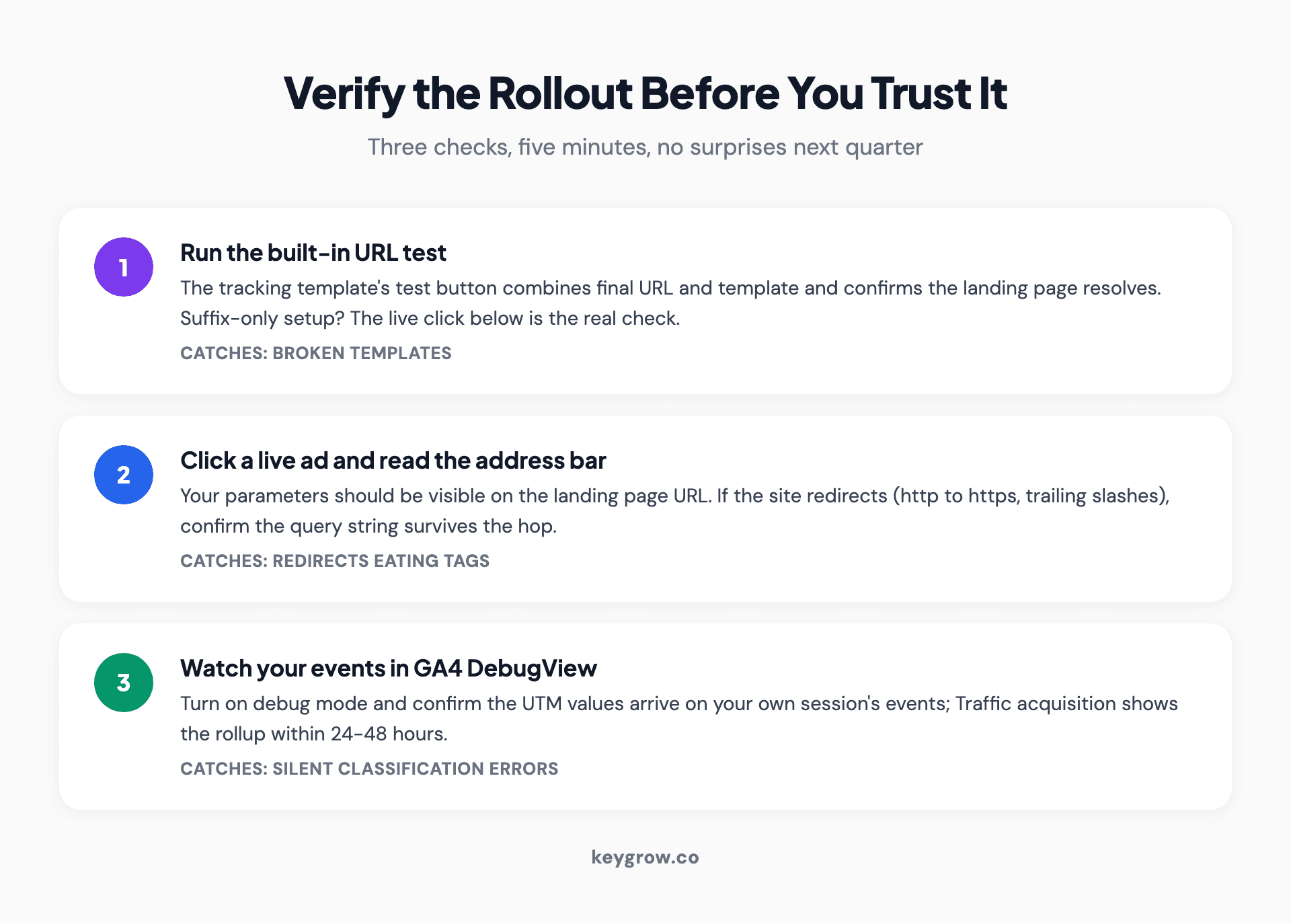
Three-step verification checklist for bulk UTM tagging: run the URL test button, click a live ad to check parameters survive redirects, confirm dimensions populate in GA4 Realtime.
The mistakes that quietly break tracking
Case mismatches, double question marks, and ad-level hardcoding cause most UTM messes. All three are avoidable in setup.
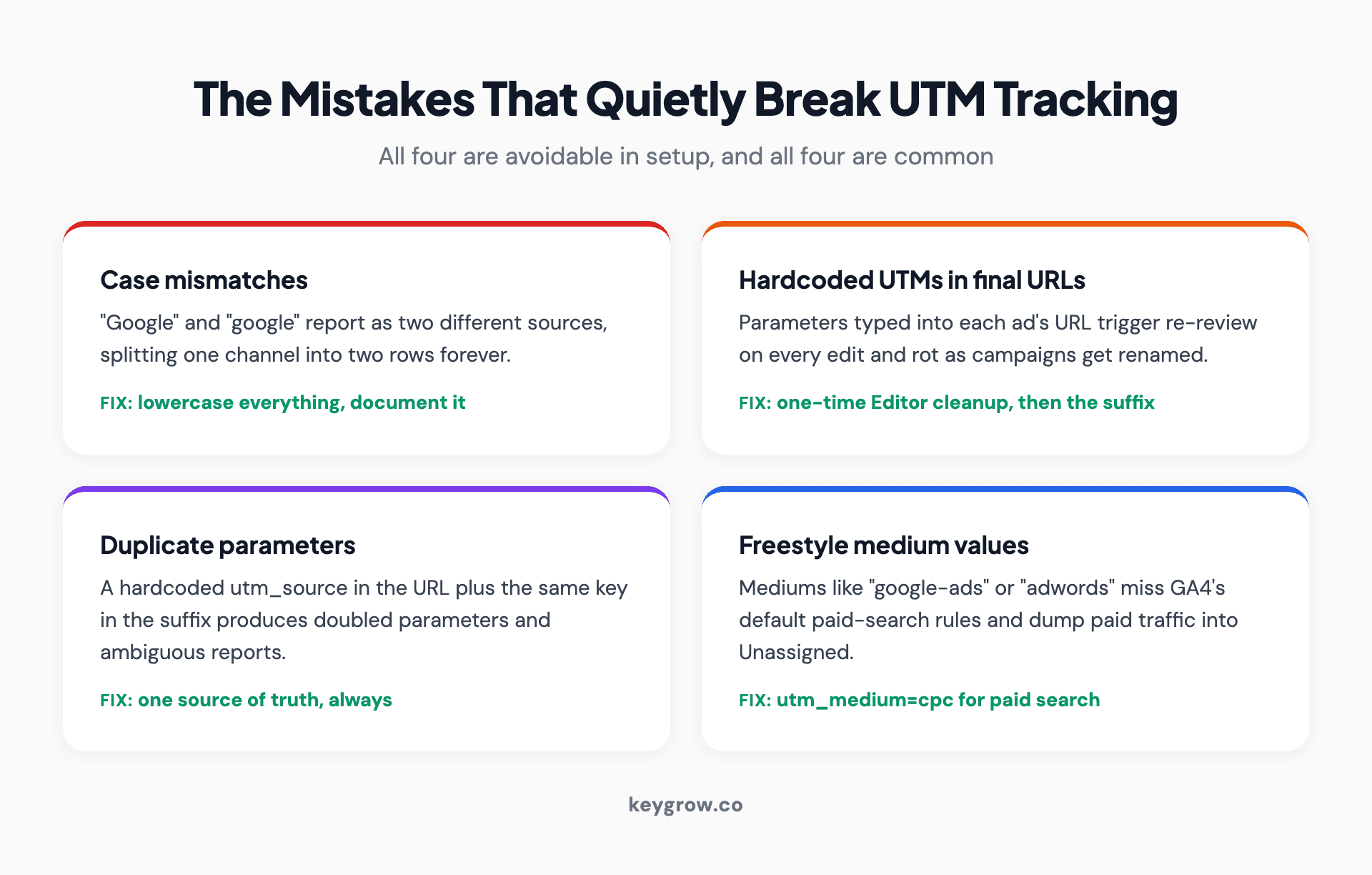
Four-card checklist of the mistakes that quietly break UTM tracking: case mismatches, hardcoded UTMs in final URLs, duplicate parameters, and freestyle medium values.
- Case consistency. Analytics tools treat "Google" and "google" as different sources, splitting one channel into two rows forever. Pick lowercase and never deviate.
- Hardcoded UTMs in final URLs. Parameters typed into each ad's final URL trigger re-review on every edit and rot as campaigns get renamed. If your account has these, plan a one-time Editor cleanup, then move to the suffix.
- Duplicate parameters. A hardcoded ?utm_source=google in the final URL plus the same parameter in the suffix produces doubled parameters and ambiguous reports. One source of truth, always.
- Freestyle medium values. Keep utm_medium=cpc for paid search clicks. Mediums like "google-ads" or "adwords" do not match GA4's default paid-search rules, and your paid traffic lands in Unassigned.
FAQs
How do I add UTM parameters to all Google Ads campaigns at once?
Paste your UTM string into the account-level Final URL suffix field under Admin > Account settings > Tracking. It applies to every campaign, ad group, and ad immediately, including campaigns you create later, and does not trigger ad re-review.
Does Google Ads automatically add UTM parameters?
No. Auto-tagging adds a GCLID parameter, which Google Analytics reads for detailed attribution, but it is not a UTM. If other tools in your stack rely on UTMs, you add those yourself, ideally through the final URL suffix.
Can I use UTM parameters and auto-tagging together?
Yes, and you should. GA4 uses the auto-tagged GCLID for source and medium classification when both are present, while your manual utm_term and utm_content values populate the separate Manual term and Manual ad content dimensions. Nothing conflicts as long as you are not trying to override source and medium.
Should UTMs go in the tracking template or the final URL suffix?
The final URL suffix. Tracking templates rewrite the click path and are meant for third-party measurement services; if the template is malformed or missing its landing page placeholder, ads stop resolving. The suffix just appends parameters and works with parallel tracking.
Will manual UTMs override the GCLID in GA4?
No. When auto-tagging is enabled, GA4 classifies the session from the auto-tagged values regardless of your UTMs. Manual parameters act as a fallback when the GCLID is missing and populate their own dimensions otherwise.
Are UTM parameters case sensitive?
Yes. Analytics platforms treat differently-cased values as different entries, so "CPC" and "cpc" report as separate mediums. Standardize on lowercase across every channel and document it.
Do UTM parameters affect SEO or Quality Score?
Not meaningfully. UTMs are query parameters on your own URLs, invisible to rankings, and Google Ads evaluates the landing page, not the tag string. The only risk is analytics hygiene: tagged URLs shared publicly can leak into indexes, which a canonical tag on your pages already handles.
Tag once, trust it everywhere
Bulk-tagging Google Ads is a solved problem with a one-field answer: a ValueTrack-powered suffix at the account level, Editor for the exceptions, and a five-minute verification pass. The payoff is unglamorous and compounding, in that every downstream system, from GA4 to your CRM to the audience lists you build from analytics, finally agrees on where a click came from.
If your account's history is a patchwork of hand-typed tags and half-finished naming conventions, that cleanup is part of any audit our PPC team runs. Or do the ten-minute version yourself today: one suffix, one test click, done.