


Creating a Google My Business page is free, and the form is short. Getting it right comes down to one question most guides skip: do customers come to you, or do you go to them?
Here is how to create a Google My Business page, in short. Sign in with a Google account you control, search for your business at business.google.com/add, and claim it if it already exists. If it does not, add it. Then enter your real business name and primary category, choose whether to show an address or a service area, add a phone number and website, and pick a verification method. Fill in hours, a description and photos while Google reviews the profile, then add a second owner so you never get locked out.
Everything below follows Google's own Business Profile help pages as of October 2026. The screens get reworded every few months, but the decisions behind them have stayed the same.

A business owner working through an online form on her laptop at a cafe table, which is about all the equipment a Google Business Profile setup needs.
Google My Business is now Google Business Profile
Same product, new name. Google renamed Google My Business to Google Business Profile in November 2021, and most people still search the old name.
9to5Google reported the change on November 4, 2021, along with the retirement of the separate My Business app in favor of managing profiles from Google Search and Maps. So if a guide tells you to download the Google My Business app, it is years out of date. Everything now runs from business.google.com, the Google Maps app, or a search for your own business name while you are signed in.
We use both names in this guide because you will see both. If you want the longer story on what the profile does for rankings, our post on whether Google My Business helps SEO covers it.
Before you open the form, settle three things
Decide your business type, check that your address is allowed, and pick the Google account that will own the profile. Each one is painful to change later.
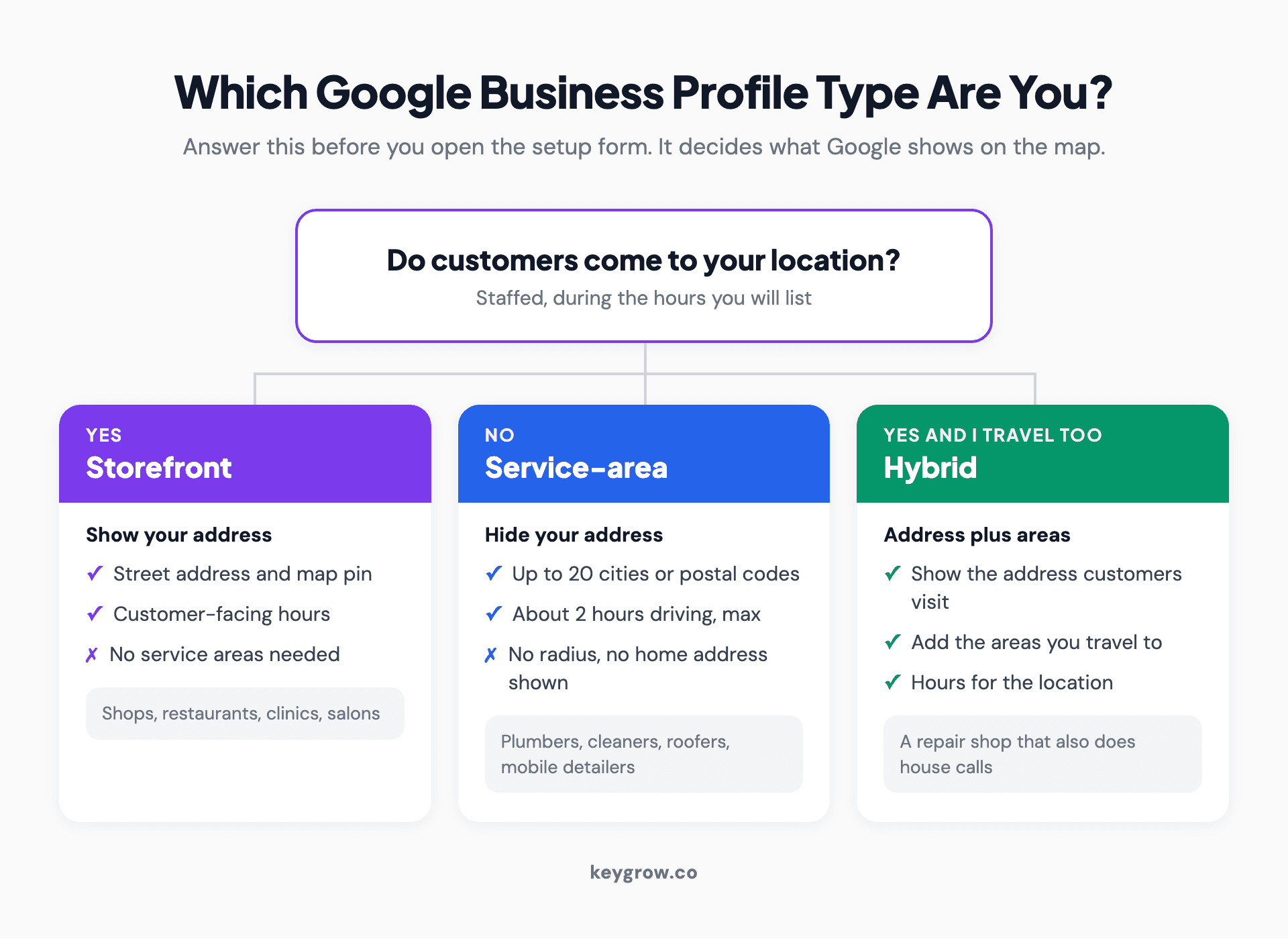
Decision flow for setting up a Google Business Profile: if customers visit you, list as a storefront with your address; if you travel to customers, list as a service-area business with the address hidden; if you do both, list as hybrid with address and service areas.
Your business type. A storefront (customers come to you) shows its address. A service-area business (a plumber, a cleaner, a mobile detailer) hides it and lists the areas it serves. A hybrid does both. Google's profile guidelines say service-area businesses should hide their address from customers, so a home-based roofer who shows his house on Maps is breaking Google's rules as well as oversharing.
Your eligibility. You need a real location customers can visit or a business that travels to them. Virtual offices are not eligible. Neither are lead-generation agents.
Your Google account. Use an account tied to the business, ideally on your own email domain, and never one that belongs to a web designer or a nephew. The person who creates the profile owns it until they hand it over, and getting it back from someone who stopped answering email is a slow process.
The setup, step by step
Ten steps, most of them a single screen. Steps 1 to 8 happen in the setup form. Steps 9 and 10 happen after you submit.
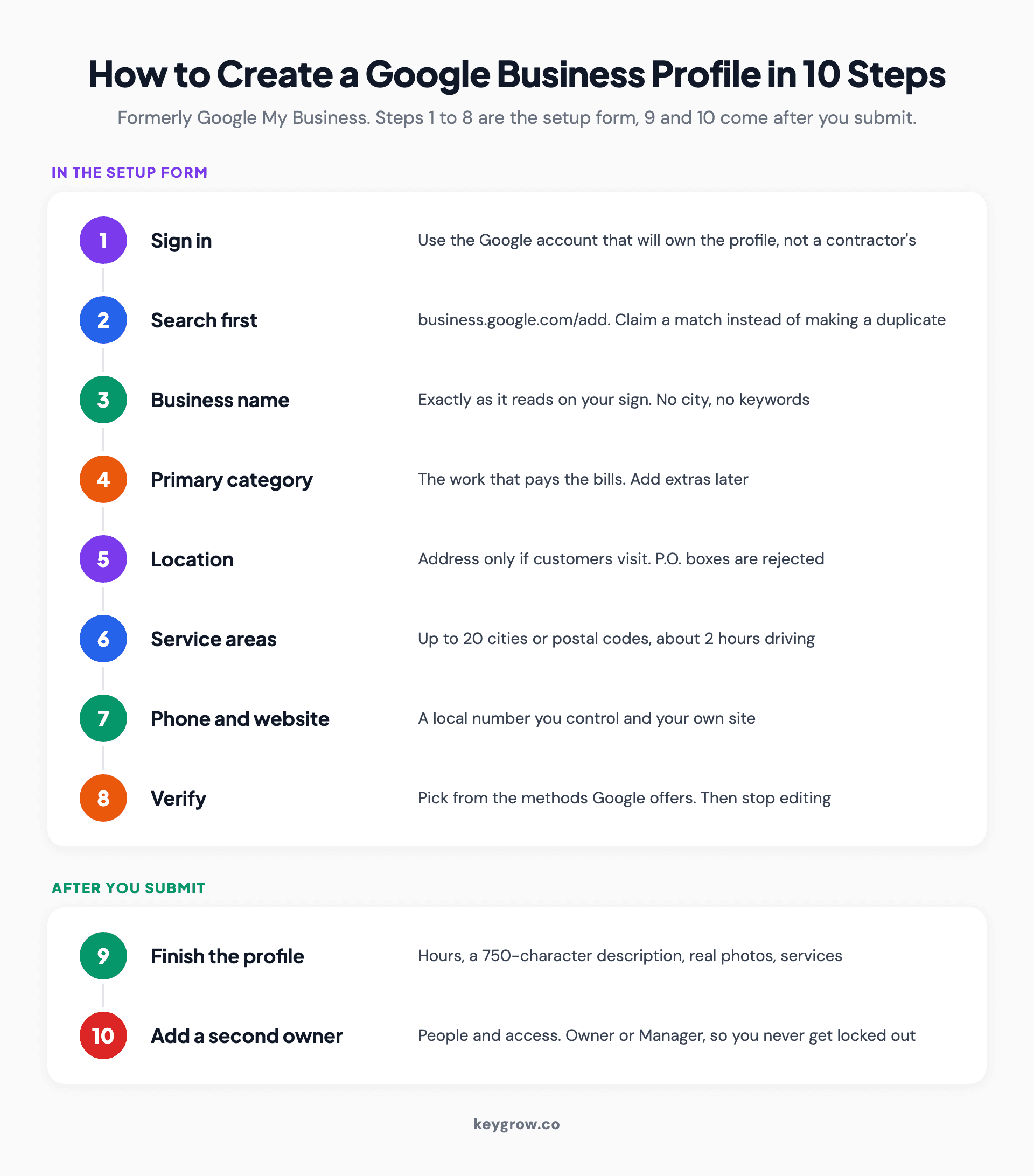
Ten-step timeline for creating a Google Business Profile, from signing in and searching for an existing listing through name, category, address, service area, contact details and verification, to finishing the profile and adding a second owner.
Step 1: Sign in with the account that will own the profile
Go to business.google.com/add while signed in to the business account you chose above. If you are creating a fresh Google account for this, the sign-up screen asks what the account is for. Choose the business option.
Step 2: Search for your business before adding it
Type your business name into the search box first. Google often has a listing already, built from public data or a customer's suggestion, and creating a second one makes a duplicate.
What you see decides the next move:
- No match. Select "Add your business to Google" and carry on.
- A match with no owner. Select it and claim it. On a phone, open Google Maps, find the listing, tap About, then "Claim this business" and "Manage now."
- "Someone else may manage this Business Profile." Select Request Access and fill in the form. Google's ownership page says the current owner gets 3 days to respond. If they stay silent, you may be able to claim it from the link in your confirmation email.
Resist the urge to start fresh because the old listing has the wrong hours. Claim it and fix the hours. The old listing has history and maybe reviews, and Google's guidelines allow only one profile per business.
Step 3: Enter your name exactly as it appears on your sign
Your name should match your storefront, website and invoices. Google's guidelines say "Including unnecessary information in your business name isn't permitted."
That rules out the classic move of typing "Smith Plumbing | 24/7 Emergency Plumber Dallas." It might bump you up for a few weeks. It is also one of the faster routes to a suspension once a competitor reports it. Put the city in the address and the services in the services list.
Step 4: Choose your primary category
Type a word describing what you do and pick the closest match from Google's list. The setup form asks for one. You can add more later.
The primary category matters more than almost anything else you can edit, so pick the one that describes the work that pays the bills, not the one that sounds most impressive. Our guide to choosing Google Business Profile categories walks through how to find the category your competitors rank with.
Step 5: Decide whether to add a location customers can visit
Google asks whether customers can visit you. Say yes only if they really can, during the hours you will list.
If you say yes, you enter your street address and confirm the map pin. The rules here are strict, so read them before you type.
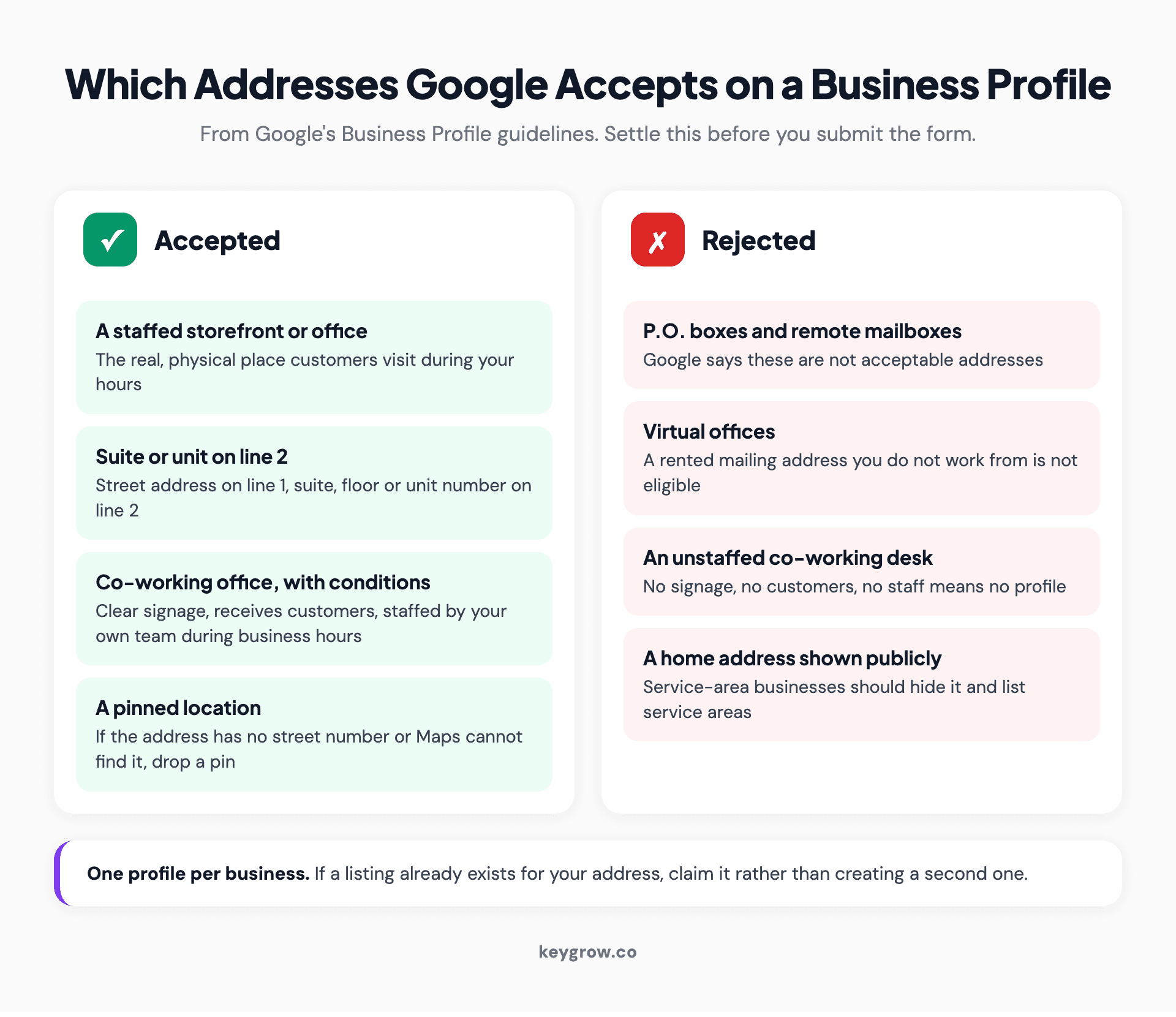
Split cards showing which addresses Google allows on a Business Profile, such as a staffed storefront or office with signage and a suite number on line two, and which it rejects, such as P.O. boxes, virtual offices, unstaffed co-working desks and a home address shown by a service-area business.
Google says "P.O. boxes or mailboxes located at remote locations aren't acceptable," and a rented mailing address you do not work from (a virtual office) is not eligible. A co-working space only counts if your office there has clear signage, receives customers during business hours and is staffed by your own people.
If customers never come to you, select no. Your address stays off the public profile, though Google may still ask for it privately during verification.
Step 6: Add the areas you serve
Service-area and hybrid businesses list the cities, postal codes or regions they cover. Google allows up to 20, and you cannot draw a radius.
Google's service-area help page also suggests the whole area should sit within about 2 hours of driving time from your base. List the places you want jobs in. Twenty suburbs you visit twice a year only make the profile vaguer.
Step 7: Add your phone number and website
Use a local number that rings at the business. Google wants a number "under the direct control of the business" and does not accept premium-rate numbers.
For the website, use your own site. Google's guidelines rule out phone numbers or links that redirect people to pages other than the business's own, including social media pages, so a Facebook page is a weak stand-in. No website yet? You can leave the field blank and add one later.
The last screen of the form may ask about updates and recommendations from Google. That choice only affects your inbox.
Step 8: Pick a verification method
Google shows the methods your business qualifies for, and you cannot choose one that is not offered. Google recommends video recording when it offers it.
Verification deserves its own guide, and it has one: our Google Business Profile verification walkthrough covers each method, the shot list for the video and what to do when it fails. The short version for setup day: do not edit your name, address or category while verification is pending.
Step 9: Fill in the rest while Google reviews it
Google prompts for hours, messaging, a description and photos after you submit. Do them now. Customers decide from what is on the profile, and an empty one gives them nothing to go on.

A man photographing the blue front of a small pottery studio from the sidewalk, the kind of real exterior shot worth uploading to a new Business Profile.
Four fields to get right on day one:
- Hours. Your regular customer-facing hours. Google says businesses that work only by appointment should not list hours at all.
- Description. Google's limit is 750 characters, with no links or HTML. Say what you do, for whom and where, in plain words.
- Photos. Your storefront, your team and real jobs. Stock photos tell customers nothing.
- Opening date. Only the month and year. A new business can set a date up to a year ahead, and Google shows it from 90 days before opening.
Everything past this point is optimization rather than setup, and our Google Business Profile optimization guide picks up there.
Step 10: Add a second owner
Open Business Profile settings, then People and access, and invite a second person as Owner or Manager. This takes a minute and saves you months if the first account is ever lost.
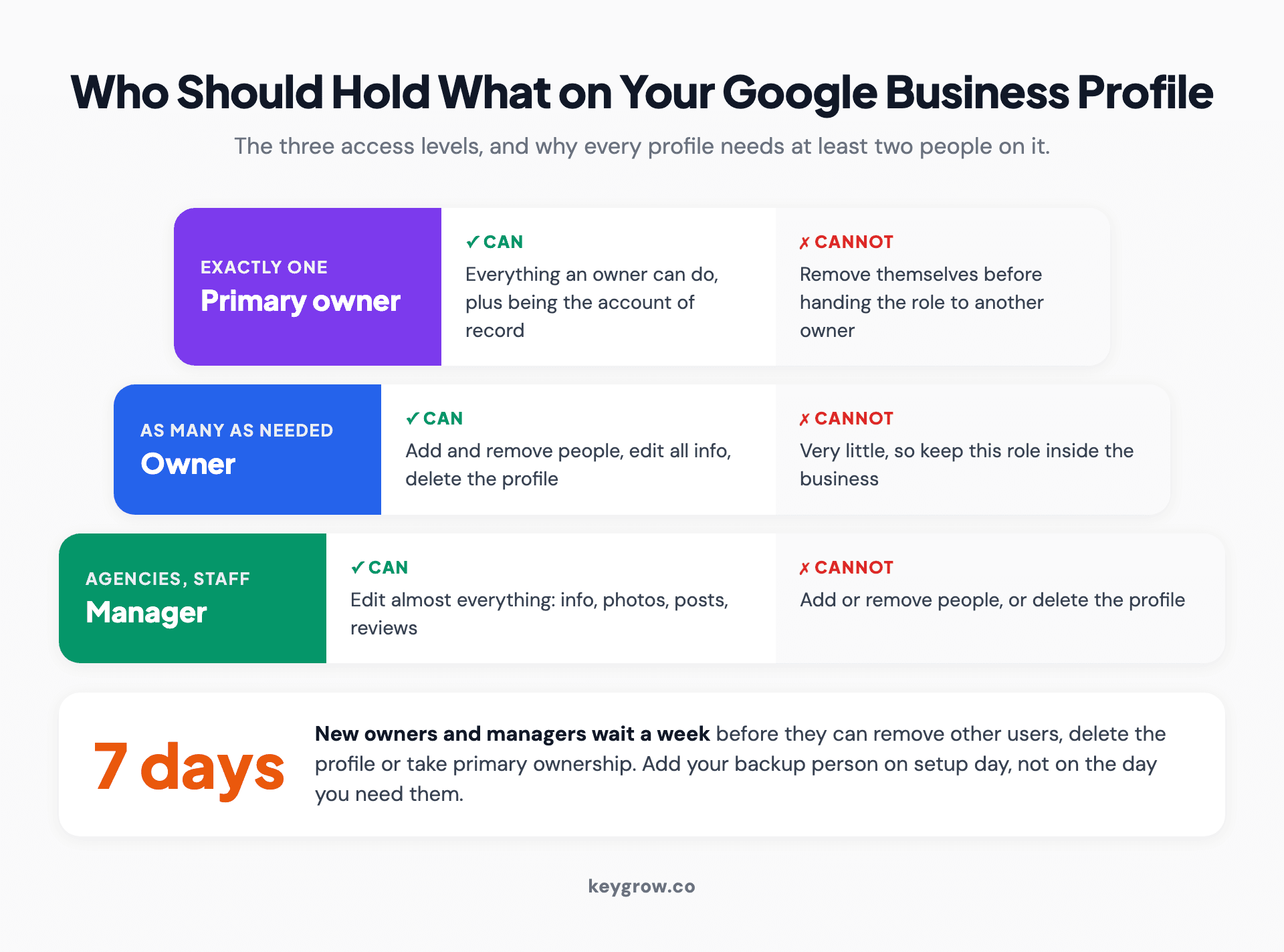
Role ladder for Google Business Profile users: one primary owner who must transfer the role before leaving, owners who can add and remove people and delete the profile, and managers who can edit almost everything except users and deletion, with a note that new users wait 7 days for some actions.
A profile can have several owners but only one primary owner. Managers can edit almost everything but cannot add people or delete the profile, which makes Manager the right level for an agency or an employee. New owners and managers wait 7 days before they can remove other users or transfer primary ownership.
What you can change later, and what it costs you
Most fields are easy to edit after setup. A few send you back through verification or reset what Google knows about you.
| Field | Can you change it later? | The catch |
|---|---|---|
| Business name | Yes | Google says you might need to verify again |
| Address | Yes | A move after verification means verifying again |
| Primary category | Yes | Rankings for your old main service can drop |
| Service areas | Yes | Edits can take up to 48 hours to show |
| Hours, phone, website | Yes | Reviewed before they go live, usually quietly |
| The account that owns it | Yes | Transfer needs a second owner or manager first |
| A duplicate profile you created | Only by removing it | Reviews left on the duplicate may not carry over |
Name, address and the owning account are the expensive ones, so get them right on the first pass.
Mistakes that stall a new profile
Five setup choices cause most of the trouble with new profiles, and every one of them is avoidable on day one.
- Creating a new profile instead of claiming the old one. Duplicates split your reviews and confuse Google about which listing is real.
- Keywords in the business name. It works until a competitor reports it.
- Showing a home address as a service-area business. Hide it and list your service areas instead.
- Letting someone else own it. If your web designer created the profile on their account, ask them to make you primary owner today, while they still reply to email.
- Editing during verification. Changing the name, address or category mid-review can send the profile back for another check.
Yes, number four sounds paranoid. It stops sounding paranoid the first time a former contractor stops replying.
Should you pay someone to set it up?
Usually not. Creating the profile is free, the steps above cover it, and an owner who knows the business will fill in the details more accurately than an outsider.
Our view, the one we give owners who ask: a single-location business with more time than money should claim its own profile, complete every field and start collecting reviews before paying anyone. Help earns its fee later, when the profile is live and the question becomes why it is not ranking or ringing.
That later stage is where the numbers come from. A phone repair shop we worked with reached 115+ monthly phone calls within 7 months of local SEO work. No setup form produced that. Seven months of steady work did, and that is the part worth paying for.
Get help on day one only if you run several locations, if an ownership dispute is blocking you, or if a previous profile was suspended.
FAQs
Is it free to create a Google My Business page?
Yes. Google charges nothing to add, claim, verify or manage a Business Profile. There is no paid tier that improves your map ranking, so treat any caller who asks for payment to keep you on Google as a scam.
Can I create a Google Business Profile without a physical address?
Yes, if you travel to customers. Select no when asked whether customers can visit, then list up to 20 service areas. Google still asks for your address privately for verification, but it does not show it on Maps.
How long does it take to create a Google Business Profile?
The form itself takes most owners well under an hour. Verification adds the wait: Google reviews submissions such as video recordings for up to 5 business days, and the profile does not appear on Maps or Search until it passes.
Can I create a Google Business Profile on my phone?
Yes. Open the Google Maps app, search for your business, and use "Claim this business" if a listing exists. For a new business, go to business.google.com/add in your phone's browser and follow the same steps as on a computer.
What if someone else already manages my business listing?
Request access from the listing. Google emails the current owner, who has 3 days to respond. If they do not answer, you may be able to claim the profile from the link in your confirmation email.
Should I create a separate Google account for my business?
It is the safer choice. A business account on your own email domain keeps the profile with the company if an employee leaves. Add a second owner either way, so one lost password never locks you out.
Your first week after setup
Day one is the form. Days two to seven decide whether the profile ever earns a phone call.
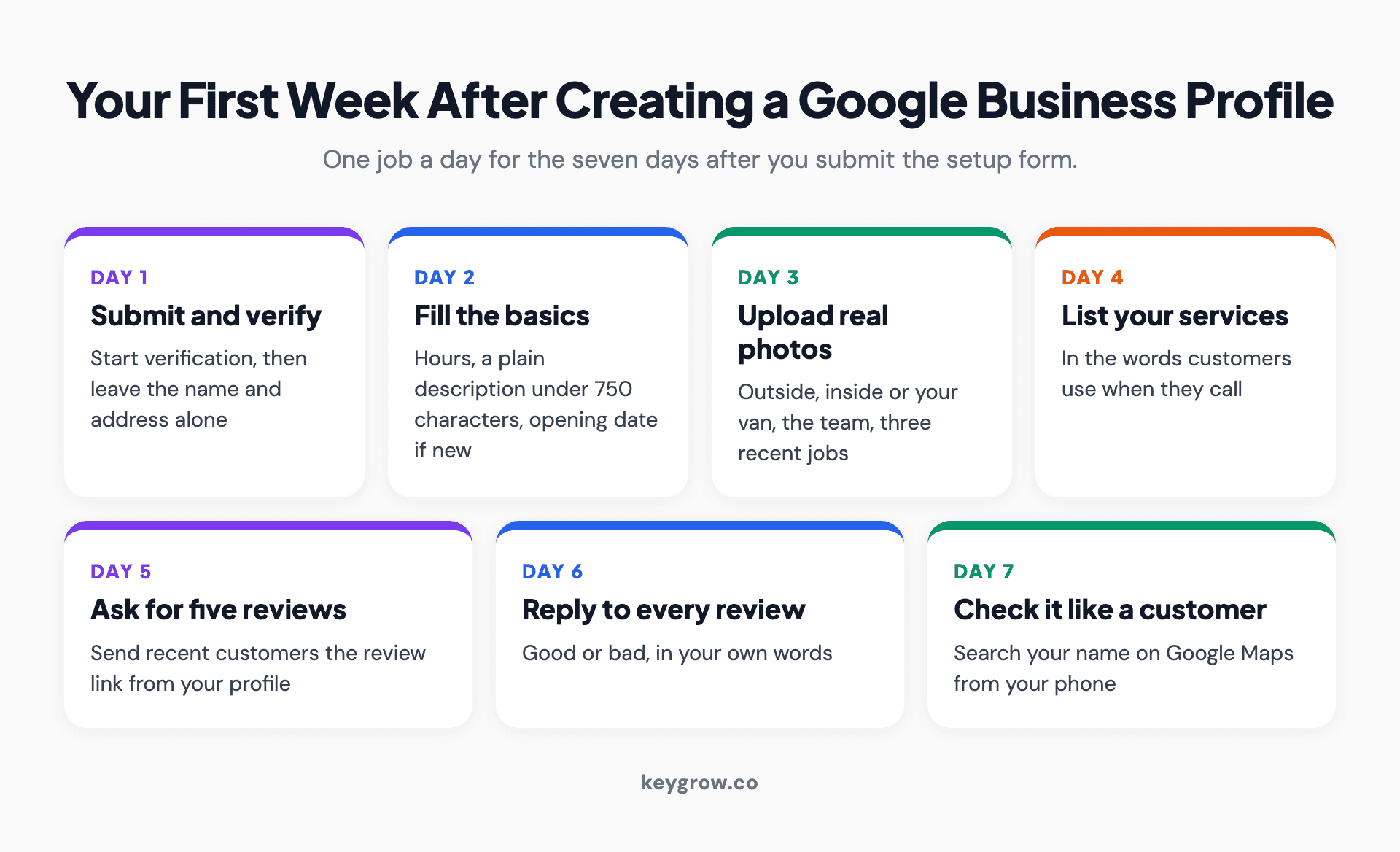
Seven-day plan after creating a Google Business Profile: day one submit and verify, day two finish hours and description, day three upload real photos, day four add services, day five ask five customers for reviews, day six reply to every review, day seven check the profile on Google Maps the way a customer would.
- Day 1. Submit the form and start verification. Then leave the name and address alone.
- Day 2. Finish hours, the description and your opening date if you are new.
- Day 3. Upload real photos: the outside, the inside or your van, the team and three recent jobs.
- Day 4. Add your services, in the words customers use on the phone.
- Day 5. Ask five recent customers for a review, using the review link from your profile.
- Day 6. Reply to every review that has landed, good or bad.
- Day 7. Search your business name on Google Maps from your phone and check it the way a customer would.
If the profile is verified and complete and the calls still are not coming after a few months, that is a ranking problem, and it is the part our local SEO team works on. Month-to-month, cancel anytime.